Follow the steps below to finalize the connection of the app you created in step 1) with Clorofile ERP, allowing it to send and receive WhatsApp messages directly from your ERP interface.
Connection Settings Tab
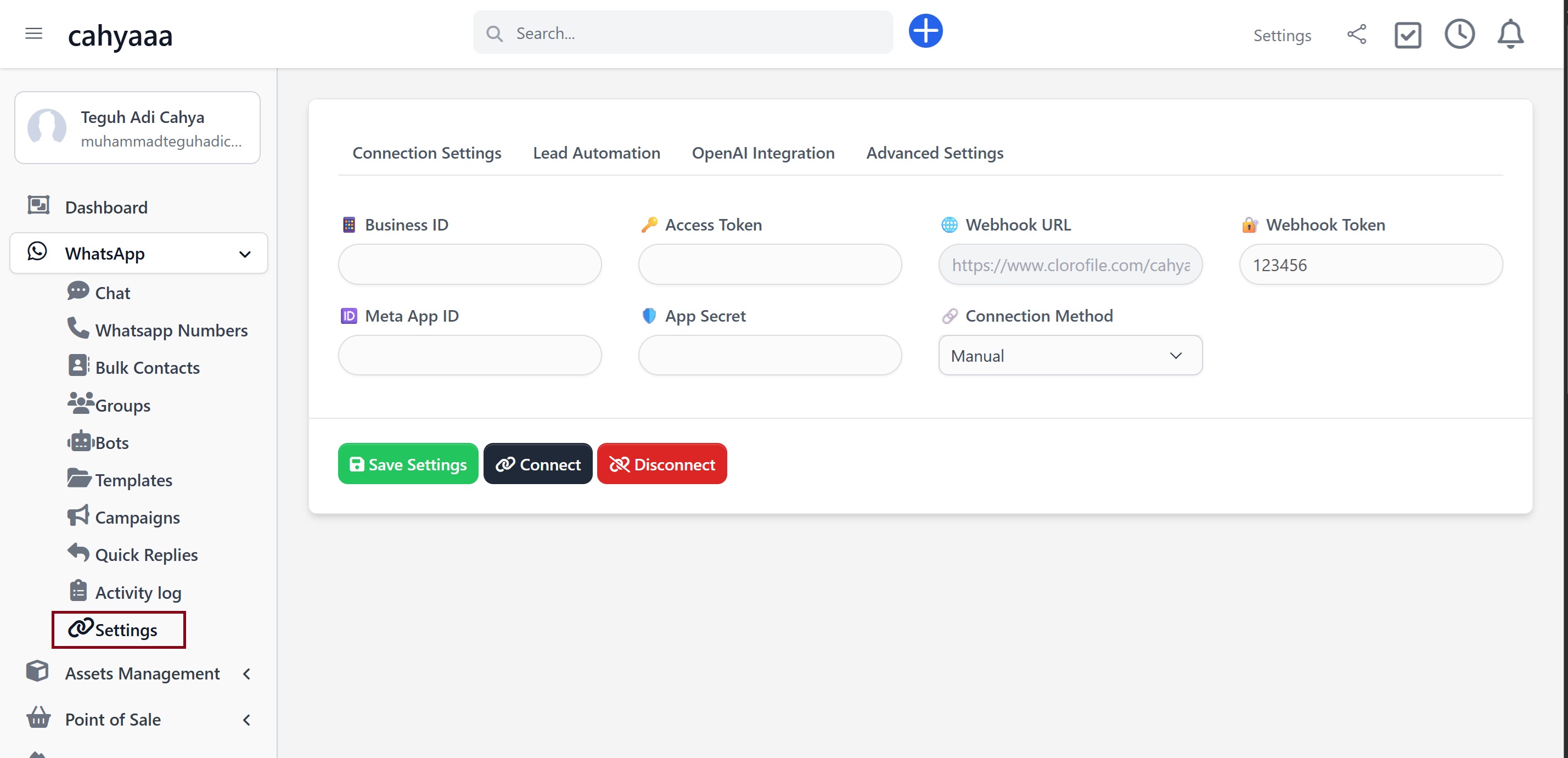
Steps to finalize the connection:
Get Your Business ID and Access Token
You’ll find your Business ID in Meta Business Manager and create a long-lasting Access Token from the Developer Dashboard (you created them previously, following 1a guide).
Paste your credentials (created from the first step of this guide) into the CRM settings:
- Business ID
- Access Token
- Meta App ID
- App Secret
- Webhook Token (you defined this during Meta's App creation)
Click “Save Settings” to store the values safely in Clorofile ERP.
Click “Connect”
This will verify your credentials and automatically fetch your WhatsApp Business Account ID, phone numbers, and current webhook status.
- Confirms your access token is valid
Loads your WABA and linked phone numbers
Register Webhooks (Optional)
If you've entered your App ID and App Secret, click “Register Webhook” to start receiving real-time WhatsApp messages in your Clorofile ERP.
- Enables incoming message notifications
- Delivers read receipts, status updates, and more
- Webhook Setup Guide
- WhatsApp Webhook Reference
Notes:
- If your Meta App ID and App Secret are provided, the webhook will be registered automatically via Meta’s API. If not, you can register it manually in the Meta Developer Console.
- Your Access Token must come from a System User with the correct permissions: whatsapp_business_management and webhooks.
What the Buttons Do
- Save Settings – Stores your credentials in Clorofile ERP securely.
- Connect – Validates your access token and fetches WABA and phone info.
- Disconnect – Deletes all saved Meta credentials and disables the sync.
✅ Tips for a Smooth Setup
- Use a long-lived token (valid for 60 days or more).
- Make sure your Webhook URL and Webhook Token match exactly in Meta Developer settings.
- Click Connect after saving to verify everything is working.
- Keep your App Secret and Access Token safe. Never share them or expose them to users.
Great, You’re done with the complete configuration.
At the end of a successful connection, you will see a screen similar to this:
.png)
Read how to config your Facebook Developers Account